FeatherHunter/dsh-im-companion
dsh-im-companion
dsh-im-companion is a community DeepSeek Harness plugin. Read the repository README before installing.
Install
npx @deepseek-ai/dsh plugin --profile desktop add dsh-imRestart `dsh web` after install. Bundle APIs can change during the developer preview.
README badge

[](https://dshhub.dev/plugins/dsh-im-companion)Paste this into your README. The star count updates with every catalog sync.
From the README
Excerpt from FeatherHunter/dsh-im-companion, cleaned of badges and images.
中文 · English
dsh-im-companion 以助理和家的概念增强dsh-im的使用体验。
你的 ⭐是我夜空中最亮的星。
Give every agent a home — IM Companion handles the rest.
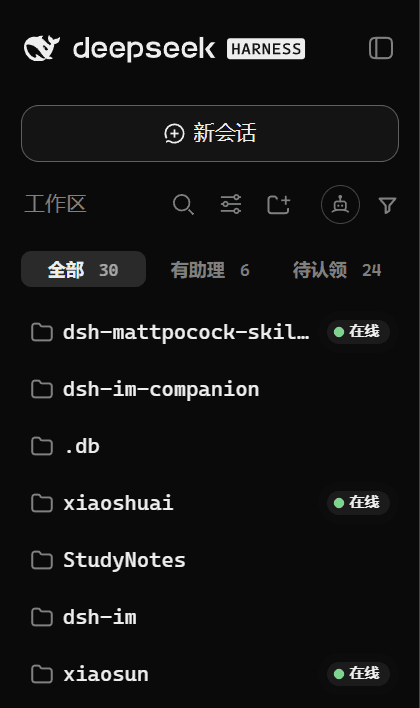
<strong>👇 有助理的工作区,一目了然。</strong> <br><img src="assets/工作区-有助理的工作区一目了然-深色.png" width="300" alt="左栏工作区:全部、有助理、无助理,在线绿灯"> <strong>👇 额外增强DSH原生会话状态。</strong> <br><img src="assets/工作区增强-显示工作区红色状态-内部也有执行中的会话.png" width="300" alt="工作区红色竖条,组内有异常会话">
装它,1 分钟(先装 dsh-im,再装辅助)。
<h2 align="center"><sub>INSTALL</sub><br>安装</h2>前置要求:DSH(DeepSeek Harness)+ dsh-im(IM 机器人本体)。
# 1 安装 DSH CLI(已装跳过)
npm install -g @deepseek-ai/dsh

# 2 先装本体 dsh-im(已装跳过,同样 --profile 必填)
dsh plugin --profile desktop add dsh-im
#     或者
dsh plugin --profile web add dsh-im

# 3 再装辅助(--profile 必填,装进实际使用的入口)
dsh plugin --profile desktop add dsh-im-companion
#     或者
dsh plugin --profile web add dsh-im-companion

# 锁定版本更稳(当前 0.1.8)
dsh plugin --profile desktop add [email protected] --registry https://registry.npmjs.org
装完刷新页面即生效。若面板没有出现,请完全退出 DSH 后重新打开。
把安装交给你的 AI
复制下面这段发给你的 AI:
请帮我安装 DeepSeek Harness 插件 dsh-im-companion(IM 辅助)。
先读仓库 README:https://github.com/FeatherHunter/dsh-im-companion
先确认我实际使用的 DSH 入口对应哪个 profile(桌面应用走 desktop,自启 web 服务走 web),
先确认 dsh-im 本体已装进同一个 profile(没装先装),再把辅助装进正确的 profile。
更新不生效时怎么装
下面以 desktop 为例,web 用户请把 --profile desktop 换成 --profile web:
dsh plugin --profile desktop add [email protected] --registry https://registry.npmjs.org
npx --yes @deepseek-ai/dsh plugin --profile desktop add dsh-im-companion
dsh plugin --profile desktop add dsh-im-companion@latest --registry https://registry.npmjs.org
升级 · 卸载:
dsh plugin --profile desktop update dsh-im-companion
dsh plugin --profile desktop remove dsh-im-companion
<a name="compat"></a>
<h2 align="center"><sub>COMPAT</sub><br>兼容性</h2>| dsh-im-companion | dsh-im | 说明 |
|---|---|---|
| 0.1.16+ | 4.21.1(已验证) | 双传输口径不变:4.17.1+ 走 /api 新载体,≤4.17.0 自动回退旧路由;4.21.1 的载体规则已复核与 4.17.1 一致(dsh-im<channel> + { method, payload }) |
| 0.1.7 – 0.1.15 | 4.17.1(已验证) | 双传输:4.17.1+ 走 /api 新载体,≤4.17.0 自动回退旧路由——两边都能用 |
| 0.1.6 | 4.17.1 | web profile 装配失败(host 半走已退役的前缀路由,报 cannot get property "webServer" without inject)→ 请升级 0.1.7 |
| 0.1.4 | ≤4.17.0 | dsh-im 4.17.1 改道后不可用(接入向导报 HTTP 405),请升级到 0.1.7 |
宿主 @deepseek-ai/dsh 0.1.5-rc.2 已验证(要求宿主提供 connection.fetch;更老宿主会在装配期显式报错,不静默降级)。面板右上角并列三枚版本胶囊,颜色即身份:紫=本插件版本号、蓝白=兼容的 dsh-im 版本(dsh-im 4.21.1)、黑白=已验证的宿主 dsh 版本(dsh 0.1.5-rc.2);胶囊只留轴名 + 版本号,完整口径在悬停(值来自 package.json,构建时注入),升级前看一眼即可。
dsh-im 掌管接入,dsh-im-companion 以助理和家的概念增强能力。
家:哪个工作区有助理在管、在不在线,尽收眼底;搬家拖一下就行。
<strong>👇 点“有助理”,只看已安家的。</strong>
<h2 align="center"><sub>IN ACTION</sub><br>真机演示</h2><strong>👇 进设置 → IM机器人增强:助理、渠道、在线状态一屏看尽。</strong>
<strong>👇 切按渠道:同渠道助理排一排。</strong>
<strong>👇 点“添加接入”:选家后扫码即绑定。</strong>
<strong>👇 点开助理卡:模式、状态、各渠道增强开关一目了然。</strong>
<strong>👇 舰队雷达:Agent × 渠道矩阵,全舰队谁在线一眼看清。</strong>
<strong>👇 会话状态一目了然(DSH增强)。</strong>
<strong>👇 蓝条代表有会话在执行。</strong> <br><img src="assets/会话状态-工作区-执行中.png" width="330" alt="工作区蓝色竖条,组内有执行中会话"> <strong>👇 橙条代表有消息等你确认。点开后自动熄灭。</strong> <br><img src="assets/工作区增强-轻松看到待用户确认的消息.png" width="330" alt="工作区橙色竖条,有待确认消息">
…