loadingvx/deepseek-harness-workbench-plugin
dsh-workbench-plugin
Deepseek-harness-workbench-plugin
Install
npx @deepseek-ai/dsh plugin --profile web add [email protected]Restart `dsh web` after install. Bundle APIs can change during the developer preview.
README badge

[](https://dshhub.dev/plugins/deepseek-harness-workbench-plugin)Paste this into your README. The star count updates with every catalog sync.
From the README
Excerpt from loadingvx/deepseek-harness-workbench-plugin, cleaned of badges and images.
Requires DeepSeek Harness ≥ 0.1.5 (compatibility update)
This plugin line is adapted for DeepSeek Harness 0.1.5+, which ships the official right sidebar (
ui-sidebar-right). Workbench panels (Git, Usage, terminal, browser, control plane, and more) dock into that host sidebar instead of only using the plugin’s own chrome.On older harness versions you may still see an update available notice, but install is refused so your environment is not broken. Upgrade DeepSeek Harness to 0.1.5 or newer first, then install or upgrade this plugin.
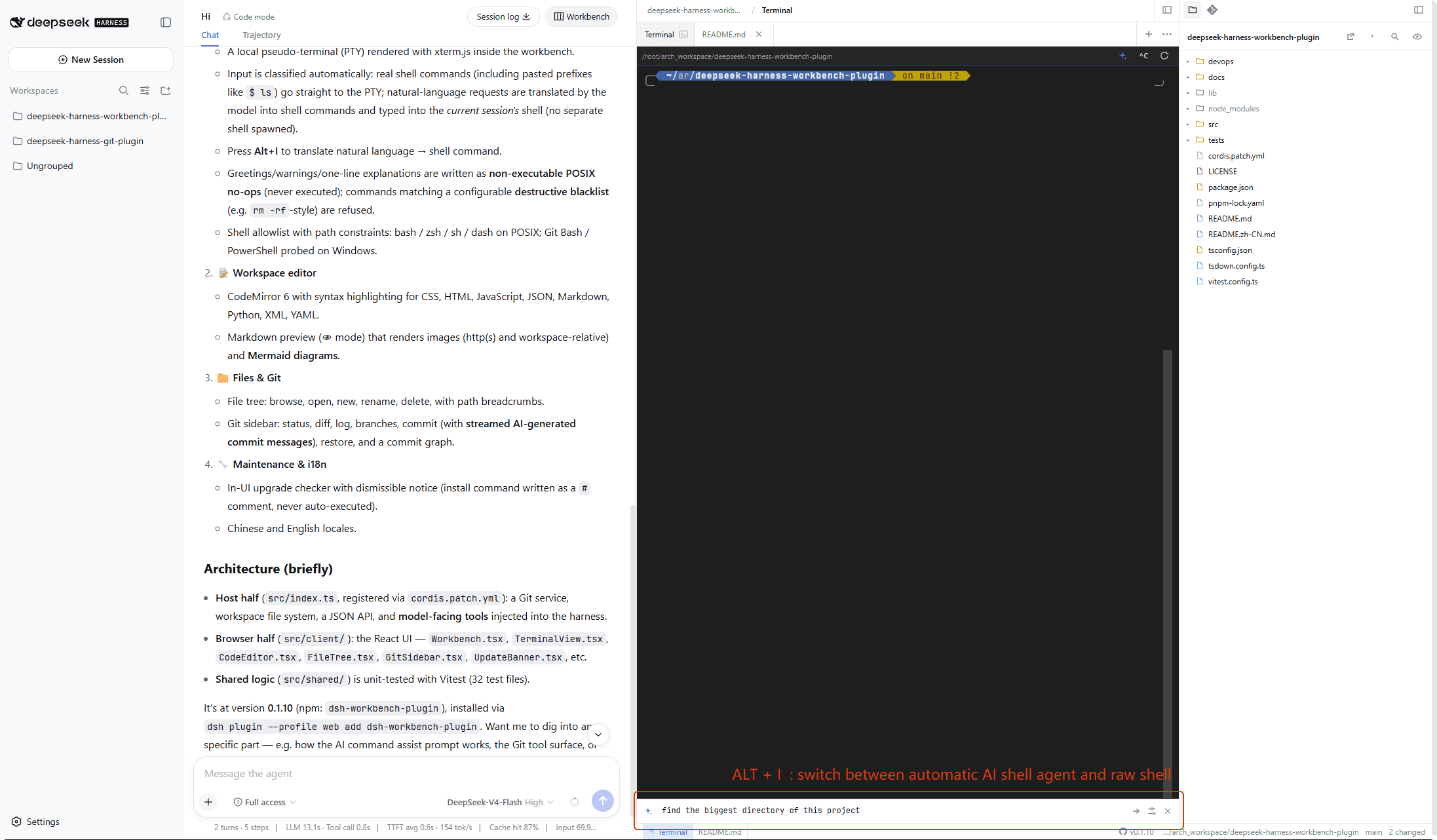
A workbench plugin for the DeepSeek Harness Web UI. After Workbench is opened in Conversation, chat stays on the left. Two columns appear on the right: the editor (Agent Control Plane, syntax highlighting, and smart terminal) and the side dock for files, Git, the Usage panel, and the Ultra Slash panel.
Look for these first:
-
Usage — official API balance, this-machine observed spend, this-session tokens and context. Pin it above the left Settings button so you can see spend while chatting.
-
Agent Control Plane — the editor’s first tab by default. Two pages: Execution trajectory (timeline fishbone of user → LLM → tools → agent reply, with expandable I/O) and Capabilities (current-session agent model, tools, prompt sections, and session knobs). Toggle visibility in Settings.
-
Ultra Slash — slash commands that inject guidance without stopping the current turn. Manage them in the right dock; send them from the bottom group of the chat
/menu. -
Canvas — live React previews for product prototypes, dashboards, and custom visuals. Agent-written files live under
.canvas/*.canvas.tsxin the workspace (not in IDE config folders). After a write, the workbench auto-opens the file in preview; switch to edit or split like Markdown. Send/canvas <topic>to steer the model without interrupting the turn. -
Smart terminal — a local PTY in the editor. Real shell lines (including pasted
$ ls) run as-is. Natural language is translated by AI command assist (<kbd>Alt</kbd>+<kbd>I</kbd> or the ✨ button) and typed into the current terminal. Notes are never executed. A blacklist blocks destructive commands the assistant would otherwise type. <kbd>Alt</kbd>+<kbd>J</kbd> opens another terminal tab. -
Add to chat — hand the model anything without copying and pasting. Drag a file from the tree (or a DevTools network request) into the chat box; right-click terminal output to add the selection or recent output (with its pwd/shell context); or tap the point-and-pick button in the embedded browser and click a page element. Each lands as a reference chip in the input and rides along with your next message.
-
AI commit messages — in the right-dock Source Control tab, generate a message from staged changes; the text streams into the commit box. The template is editable.
-
Notification sounds — when a session finishes while you are away or is waiting on you (approval, plan confirmation, question), the workbench plays a chime. Pick one of 5 built-in Web Audio sounds or upload your own audio (mp3, ogg, wav, webm, m4a, flac, up to 50 MB); a loop reminder keeps replaying it every N seconds (default 10) until the item is handled. The master switch, sound picker, and loop interval live in the workbench Settings panel.
Contents
…