lsq-dsh-plugins/dsh-workbench-layout
dsh-workbench-layout
dsh-workbench-layout is a community DeepSeek Harness plugin. Read the repository README before installing.
Install
npx @deepseek-ai/dsh plugin --profile web add @lsq64737/dsh-workbench-layoutRestart `dsh web` after install. Bundle APIs can change during the developer preview.
README badge

[](https://dshhub.dev/plugins/dsh-workbench-layout)Paste this into your README. The star count updates with every catalog sync.
From the README
Excerpt from lsq-dsh-plugins/dsh-workbench-layout, cleaned of badges and images.
DSH Workbench Layout
简体中文 | English
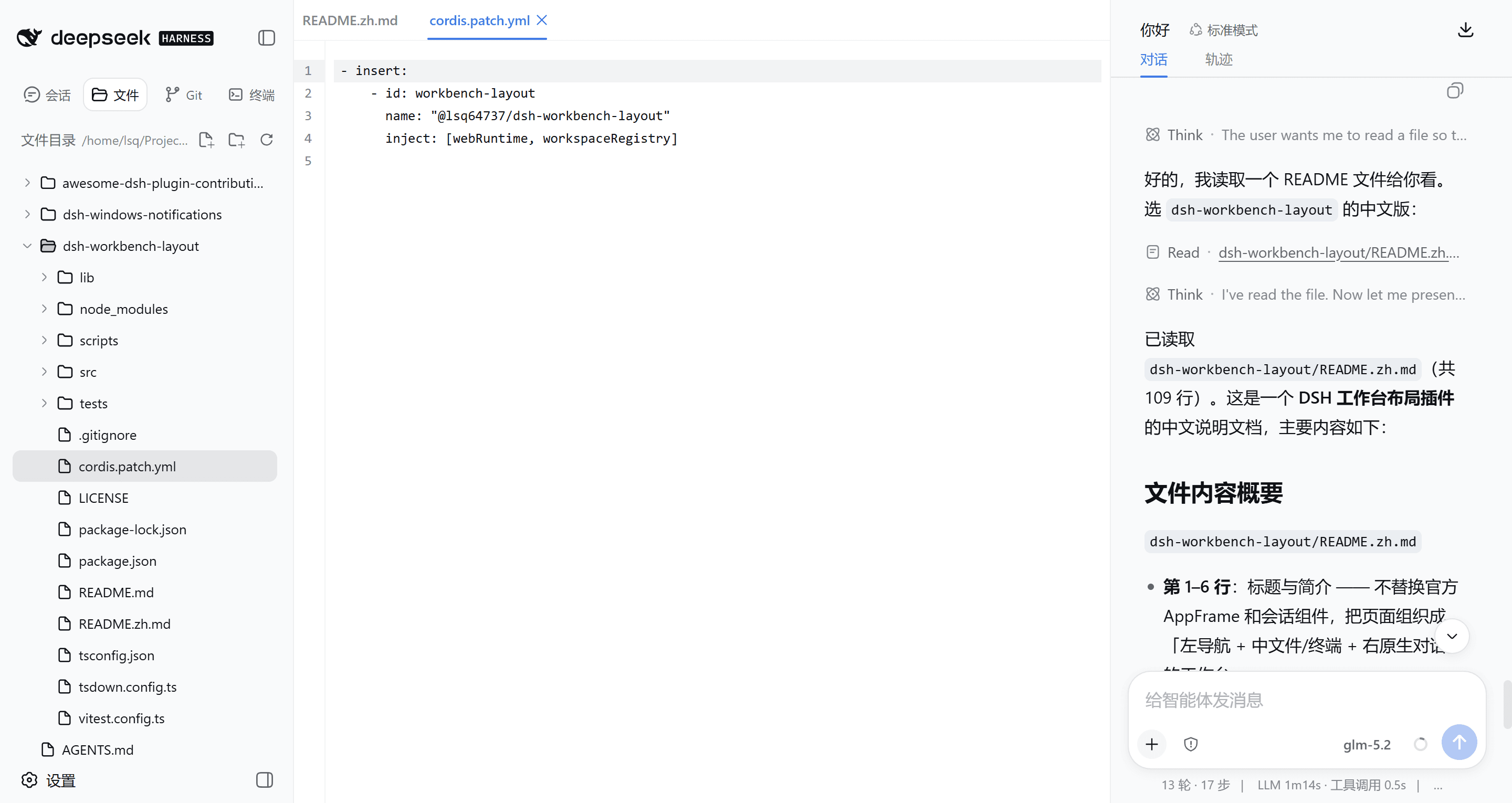
A three-column workspace for DeepSeek Harness Web: navigation on the left, files and terminals in the middle, and the native DSH conversation on the right.
Overview
DSH Workbench Layout rearranges the official DSH AppFrame without replacing its conversation or composer. Files, Git state, editor tabs, and terminals follow the selected Workspace; chat remains owned by the current Session.
| Area | What it provides |
|---|---|
| Left sidebar | Sessions, file explorer, Git changes and Commit Graph, terminal list |
| Middle editor | Multiple file tabs, Markdown preview, per-file Diff, interactive terminals |
| Right column | The original DSH conversation, task status, tools, and composer |
The layout, icons, colors, menus, dialogs, tooltips, and responsive behavior reuse DSH components and design tokens wherever the official client exposes them.
Features
Files and Markdown
- Browse directories lazily and create, rename, or delete files and folders.
- Color file-tree entries and middle-editor tabs from Workspace Git state: untracked, deleted, or conflicted files are red; added files are green; modified and renamed files use the warning color. Untracked state decorates only the file itself; directories aggregate the highest-priority remaining descendant state.
- Compare the editable source buffer with Git
HEADand show additions in green, modifications in blue, and deletion positions in red in a clickable change gutter without tinting code content. Click a marker to open a local Unified Diff with context, paired old/new line numbers,-/+rows, and character-level change emphasis, navigate between changes, or revert only that block; a revert changes the draft and remains undoable. Drag the popup's right edge to resize its width, or focus the edge and use the arrow keys; the viewport-safe width is remembered across changes, files, and page reloads. Pressing outside closes the popup. Staged, unstaged, and unsaved edits are combined, then refreshed while typing, after saves or external changes, and across branch switches. Rendered Markdown Preview stays clean; the markers appear in Source mode. - Open multiple files in one tab strip; use the mouse wheel over overflowing tabs to scroll horizontally.
- Save the active file with
Ctrl/Cmd + S. Writes use DSH version tokens so an externally changed file is not silently overwritten. - While the page is visible, open files are checked in one batch about once a second, with an immediate check when focus returns. Clean tabs update automatically; a dirty draft receives explicit Reload or Keep Current choices after an external change.
- The editor compares CodeMirror's canonical text and preserves the file's existing CRLF, LF, or CR style when saving, preventing line-ending normalization from creating a false yellow dirty marker.
- Open Markdown in rendered Preview mode by default and switch to Source when editing.
- Copy workspace-relative or absolute paths from the file context menu.
- Open file references produced by DSH tools directly in the middle editor.
Git workspace
…