oil-oil/dsh-vision
dsh-vision
Near-native image understanding for DeepSeek Harness
Install
npx @deepseek-ai/dsh plugin --profile web add github:oil-oil/dsh-visionRestart `dsh web` after install. Bundle APIs can change during the developer preview.
README badge

[](https://dshhub.dev/plugins/dsh-vision)Paste this into your README. The star count updates with every catalog sync.
From the README
Excerpt from oil-oil/dsh-vision, cleaned of badges and images.
English | <a href="./README.zh.md">中文</a>
dsh-vision is a plugin for DeepSeek Harness. Vision-capable models keep receiving images natively. When the selected main model is text-only, the plugin asks a separate vision model to observe the original images, then lets the original DeepSeek model produce the final answer.
How it works
| Main model | Image path | Final answer |
|---|---|---|
| Supports images | Original images are sent directly, without preprocessing or OCR | Current model |
deepseek-official or another text-only model | A configured vision model observes the original images; its output is injected as untrusted attachment context | DeepSeek |
| Cloud vision unavailable | Falls back to macOS Vision or Tesseract | DeepSeek |
The plugin does not replace the main model selected in Harness. Multiple image attachments are analyzed together, so comparisons and combined evidence work naturally. The user's task is forwarded unchanged instead of being wrapped in a fixed report template.
Install
Use the plugin manager built into DeepSeek Harness:
npx @deepseek-ai/dsh plugin --profile web add github:oil-oil/dsh-vision
Restart Harness, then paste or drag images into the composer as usual. The plugin replaces the official deepseek-official adapter while preserving its model catalog, settings, and credentials. It also adds a Vision Recognition card to Settings → Plugins → Plugin configuration.
DeepSeek Harness is still in Developer Preview. This release supports
0.1.0-rc.6and0.1.0-rc.7; its settings-card registration satisfies both the legacy list Slot and the current keyed Slot without relying on private runtime inspection.
Configure Vision Recognition
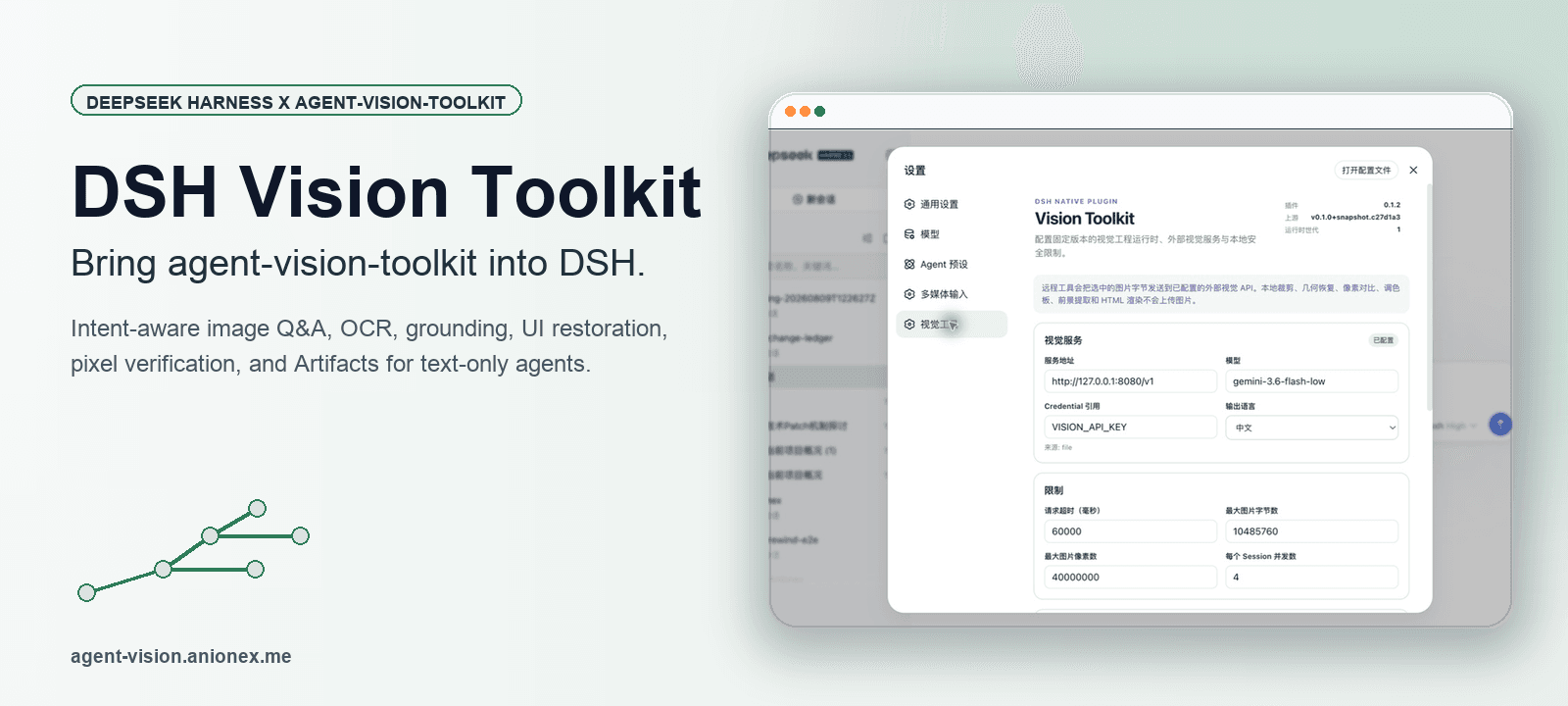
Open Settings → Plugins → Plugin configuration → Vision Recognition. Select ZenMux, Alibaba Cloud Model Studio, TokenDance, or OpenRouter, then enter its API key. The same card lets you change the model ID, API endpoint, and image limit.
The API key is stored through Harness's official credential service. It is write-only in the browser: the plugin can report whether a key exists, but never reads it back into the page, chat, settings document, or session log.
Routing follows the user's choice. A provider selected in Vision Recognition is primary for text-only models. Other enabled Harness vision routes, an existing see configuration, and local OCR are failover only. When the current main model supports images, the original images pass through natively and none of these bridge routes are used.
Choose Automatic to skip plugin-managed cloud credentials. The bridge then tries image-capable models already configured in Harness, followed by see-compatible private configuration and local OCR. A Harness custom model must declare image as an input modality or it remains a text model.
Advanced file configuration
Most setups should use the UI. The equivalent non-secret fields live in the existing llm-deepseek section of $DSH_HOME/settings.yaml:
llm-deepseek:
  visionBackend: zenmux
  visionBackendModel: qwen/qwen3.7-plus
  visionBackendBaseURL: https://zenmux.ai/api/v1
  maxImages: 8
Do not put API keys in this file. Save them in the Vision Recognition card or provide the matching environment variable. Changes apply without a restart.
see-skill compatibility
…