faith1688/dsh-usage-meter-harness
dsh-usage-meter-harness
dsh-usage-meter-harness is a community DeepSeek Harness plugin. Read the repository README before installing.
Install
npx @deepseek-ai/dsh plugin --profile web add --verboseRestart `dsh web` after install. Bundle APIs can change during the developer preview.
README badge

[](https://dshhub.dev/plugins/dsh-usage-meter-harness)Paste this into your README. The star count updates with every catalog sync.
From the README
Excerpt from faith1688/dsh-usage-meter-harness, cleaned of badges and images.
dsh-usage-meter-harness
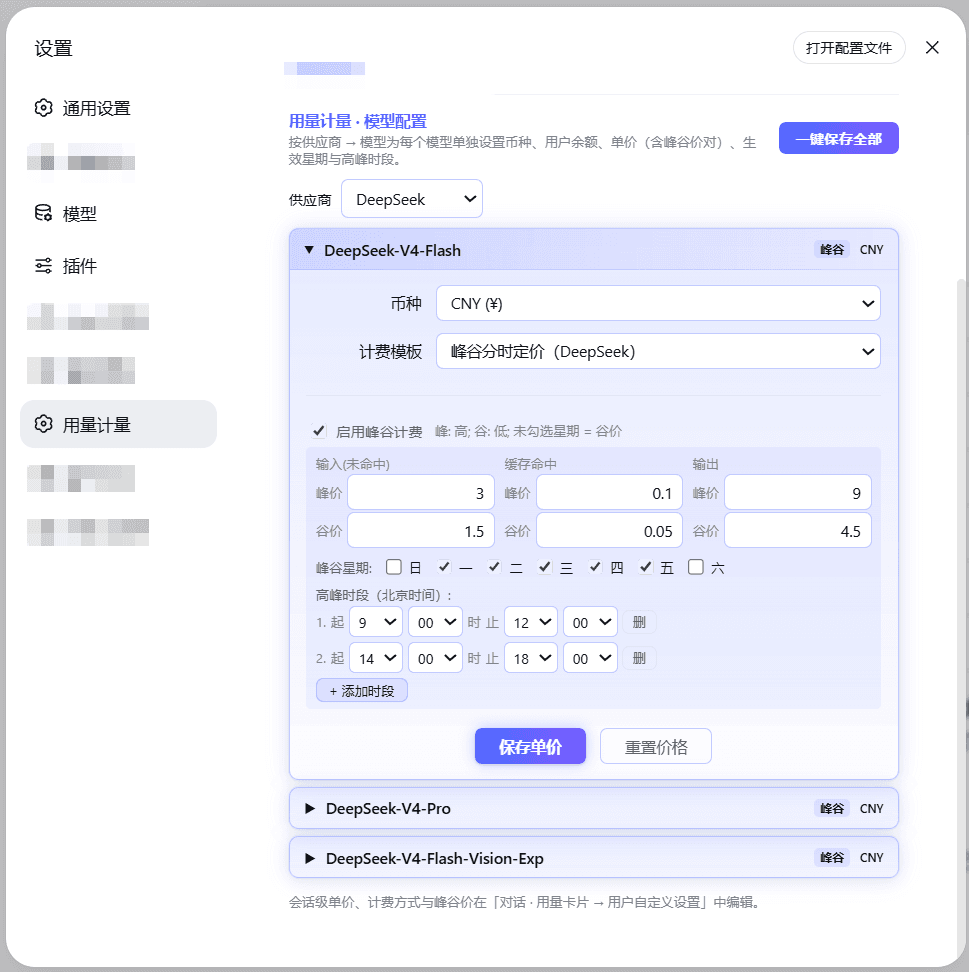
A real-time usage / cost / balance meter plugin for DeepSeek Harness (DSH). See tokens, spending and real wallet balance right next to the chat input — for the official DeepSeek models and any custom model registered in DSH.
Install
Prerequisite (methods 1 & 2): the DSH CLI itself runs on pnpm — install it once per machine:
npm install -g pnpm(orcorepack enable), then verify withpnpm --version.
Pick one of the three methods. Methods 1 and 2 need pnpm (a one-time machine
setup used by the DSH CLI itself): npm install -g pnpm or corepack enable.
Method 1 — npm registry via DSH CLI (needs pnpm)
dsh plugin --profile web add --verbose @faith1688/dsh-usage-meter-harness@latest
(--verbose shows the install progress; drop it if you prefer a quiet install.
@latest explicitly requests the newest release — always install this way.)
Method 2 — GitHub via DSH CLI (needs pnpm)
dsh plugin --profile web add --verbose github:faith1688/dsh-usage-meter-harness
(--verbose shows the install progress.)
Method 3 — one-line installer, no pnpm (recommended)
npx -y @faith1688/dsh-usage-meter-harness@latest
One command: installs into the DSH web profile and registers the bundle (idempotent).
(@latest explicitly requests the newest release — always install this way.)
Prefer not to use npx? The same logic ships as scripts in the repo:
Windows (cmd):
curl -fsSL https://raw.githubusercontent.com/faith1688/dsh-usage-meter-harness/main/scripts/install.cmd -o "%TEMP%\um-install.cmd" && "%TEMP%\um-install.cmd"
Linux / macOS:
curl -fsSL https://raw.githubusercontent.com/faith1688/dsh-usage-meter-harness/main/scripts/install.sh | sh
The script does everything for you: cd into the DSH web profile, installs the
package with visible progress, and registers the bundle in dsh.profile.bundles
(idempotent — safe to re-run after upgrades).
Note: Method 3 uses plain
npmand does not do pnpm coordination. If your profile is managed with pnpm (the default fordsh plugin), prefer Method 1.
After any method: restart dsh web.
Updating
Two cases — pick the right one:
Fresh install (never had the plugin), or the npx method: just run the
install command; it always fetches the latest release.
Upgrading an existing install (plugin already present): the profile's
package.json / pnpm-lock.yaml may be pinned to an old version, and a bare
add can be skipped by pnpm as "already satisfied". Always ask for the new
version explicitly:
dsh plugin --profile web add @faith1688/dsh-usage-meter-harness@latest
or, from inside the profile directory (~/.dsh/profiles/web):
pnpm update @faith1688/dsh-usage-meter-harness
(You may also pin an exact version, e.g. [email protected].)
If your package.json binds the plugin via a file: path or a pin that add
won't override (you see Already up to date / downloaded 0), use the
one-line installer instead — it always requests @latest, which rewrites the
binding to ^<latest> and upgrades in a single command:
npx -y @faith1688/dsh-usage-meter-harness@latest
(Re-running this same command is the permanent update path: it is idempotent
and upgrades regardless of whether you currently bind via file:, a pin, or ^.)
…