chengzhi43/dsh-file
dsh-file
dsh-file is a community DeepSeek Harness plugin. Read the repository README before installing.
Install
npx @deepseek-ai/dsh plugin --profile web add .Restart `dsh web` after install. Bundle APIs can change during the developer preview.
README badge

[](https://dshhub.dev/plugins/dsh-file)Paste this into your README. The star count updates with every catalog sync.
From the README
Excerpt from chengzhi43/dsh-file, cleaned of badges and images.
<a href="https://github.com/chengzhi43/dsh-file">GitHub</a> · <a href="#安装">安装</a> · <a href="#themes">主题导入导出</a> · <a href="#常见问题">FAQ</a> · <a href="https://github.com/chengzhi43/dsh-file/issues">反馈 Issues</a> · <a href="https://github.com/chengzhi43/dsh-file/releases">Releases</a>
<p align="center"><a href="README.en.md">English</a> · <b>简体中文</b></p>dsh-file
DeepSeek Harness 的 VS Code 风格文件管理器插件:在 Web 侧边栏浏览当前对话工作区的文件,在中间主区域编辑。
A VS Code-style file manager plugin for DeepSeek Harness Web: browse the current conversation's workspace from the sidebar and edit files in the center column.
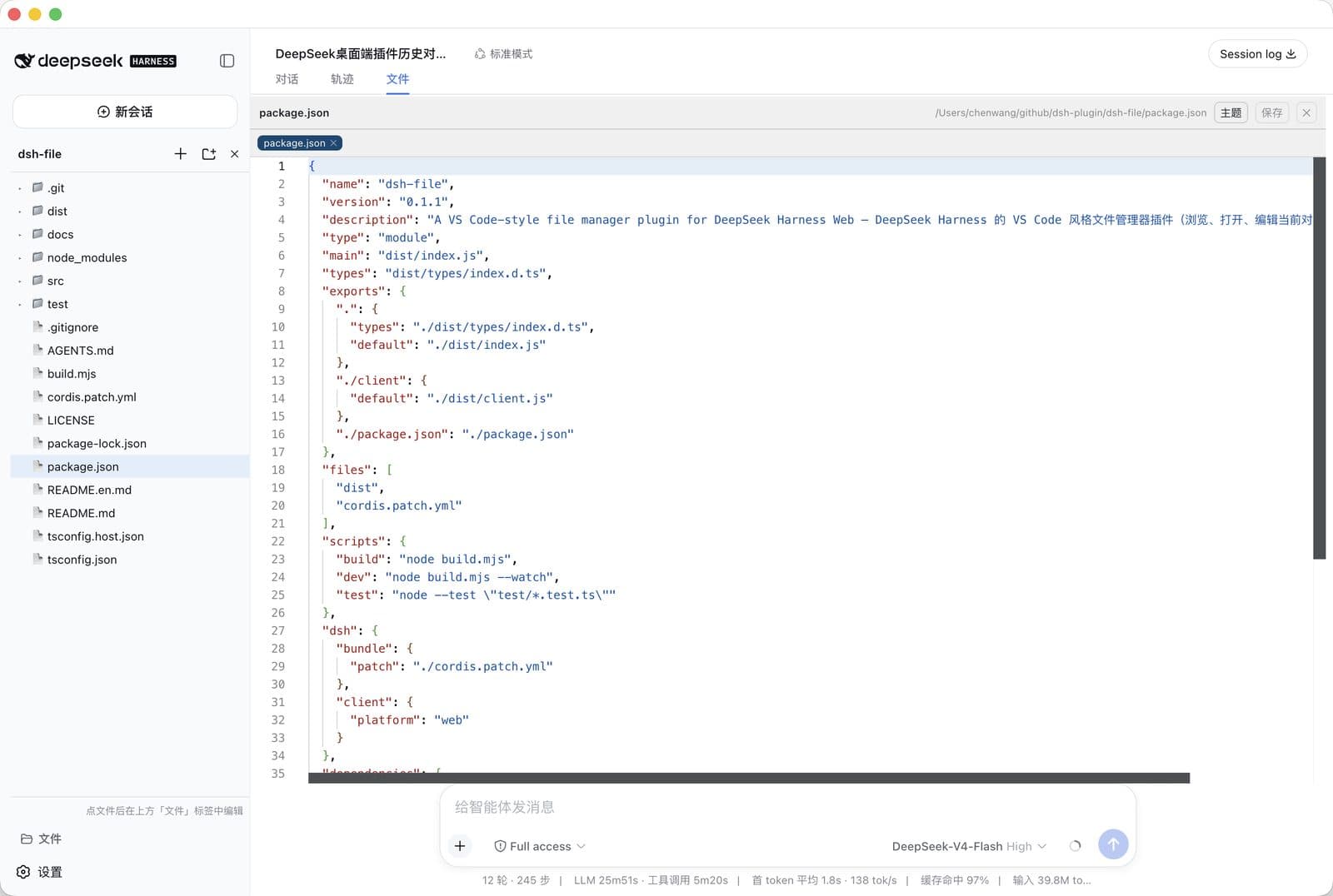
截图
侧边栏文件树浏览工作区,点击文件后在中间列「文件」视图中编辑(Monaco 编辑器,语法高亮)。
安装
# 在 clone 下来的 dsh-file 目录内执行(不是父目录)
cd /path/to/dsh-file
dsh plugin --profile web add .
dsh plugin add 会把包 pnpm-link 进 profile 并追加到 dsh.profile.bundles。重启 dsh web 生效(client 插件元数据按名缓存,重启后重新扫描)。
桌面端(DSH Desktop)安装
桌面端是 deepseek-harness-desktop 项目(包名 dsh-plugin-desktop)。它与 dsh web 使用互相独立的 profile(桌面端用 desktop,dsh web 用 web),插件不会自动共享——只装进 web profile 的插件在桌面端不会出现,设置 → 插件列表里也不会显示:
# 同样在 dsh-file 目录内执行
cd /path/to/dsh-file
dsh plugin --profile desktop add .
安装后完全退出并重启桌面端(退出应用,不是关窗口),dsh-file 才会出现在侧边栏底部"文件"按钮和设置 → 插件列表中。
注意:不要往
~/.dsh/profiles/desktop/cordis.yml里添加插件——桌面端每次启动都会把它重写为空列表[]。插件的正确入口是 profilepackage.json的dsh.profile.bundles+dependencies(dsh plugin add做的正是这件事)。
从 npm 安装
dsh plugin --profile web add dsh-file
或从 Releases 页面下载 tarball 后本地安装(桌面端把 --profile web 换成 --profile desktop):
dsh plugin --profile web add ./dsh-file-0.1.1.tgz
配置
cordis.patch.yml 中的 root 只是无会话时的兜底根目录(默认 process.cwd())。文件管理器打开时,浏览器会解析当前对话的工作区目录并通过 setRoot 重新固定根目录,因此一般无需改动:
- insert:
    - id: dsh-file
      name: 'dsh-file'
      config:
        root: !!js process.cwd()   # 仅作为打开文件管理器前的兜底根目录
功能
- 侧边栏底部"文件"按钮:点击后侧边栏主体切换为文件管理器(文件树),再点切回工作区/会话列表
- 工作区跟随当前对话:文件管理器打开时自动解析当前会话的工作区目录(
SessionHeader.cwd),通过setRoot重新固定网关根目录——不再是启动dsh web的目录 - 中间列编辑器(视图标签):编辑器注册为中间栏
conversation.view视图("文件"标签,与"对话/轨迹"并列)。点击文件后在页面内的会话滚动区(非弹窗)显示并编辑:Monaco Editor(VS Code 同款内核,从 CDN 加载)按扩展名自动语法高亮;CDN 不可达时降级为纯文本 textarea - Markdown 预览:打开
.md文件默认渲染为只读预览(marked + GFM:标题/列表/表格/任务列表/代码块),工具栏"主题"按钮旁有 VS Code 风格的预览/源码切换按钮(仅 Markdown 文件显示);模式选择自动记住(localStorage),下次打开沿用 - 主题设置(VS Code 风格):编辑器工具栏"主题"按钮打开设置面板——默认浅色,预设主题用下拉框选择(浅色/深色/One Dark/GitHub),可自定义背景色/文字色/字号(10–28px),实时应用到 Monaco 与编辑器面板(工具条/状态条/标签随背景联动),自动持久化到 localStorage
- 主题导入/导出:像 VS Code 一样把主题保存为 JSON 文件、从文件恢复,方便在不同环境间迁移配色(详见主题导入/导出)
- 编辑与保存:Ctrl+S 或编辑器内"保存"按钮,dirty 标记(●);打开多个文件可在顶部标签条切换、每个标签带 ✕ 关闭
- 文件操作:新建文件、新建目录、重命名、删除(删除需确认,非空目录拒绝)
- 工作区边界:所有路径解析相对当前固定的
root,越界路径被 host 拒绝(含 symlink 逃逸防护)
主题导入/导出
<a id="themes"></a>
主题设置面板(编辑器工具栏"主题"按钮)支持把当前主题导出为 JSON 文件,或从 JSON 文件导入恢复——和 VS Code 的主题文件机制一致,方便换机器、换环境时迁移你的配色。
导出主题
- 打开文件编辑器(中间列"文件"视图)。
- 点击工具栏 主题 按钮,打开主题设置面板。
- 点击 导出主题,浏览器会下载一个
dsh-file-theme-YYYY-MM-DD.json文件。
导出的 JSON 同时包含本插件字段与 VS Code workbench colors 字段:
…