AHGGG/dsh-side-chat
dsh-side-chat
Codex-style Side Chat for DeepSeek Harness — select text, ask follow-up questions in a focused side conversation, and keep the main chat uninterrupted.
Install
npx @deepseek-ai/dsh plugin --profile web add @ahggg/dsh-side-chat@latestRestart `dsh web` after install. Bundle APIs can change during the developer preview.
README badge

[](https://dshhub.dev/plugins/ahggg-dsh-side-chat)Paste this into your README. The star count updates with every catalog sync.
From the README
Excerpt from AHGGG/dsh-side-chat, cleaned of badges and images.
dsh-side-chat
Ask a focused follow-up about selected text without leaving your current DeepSeek Harness conversation.
Install
Install DSH rc.7 if it is not already available. Refresh only this package's registry metadata before adding it, so pnpm cannot reuse an older latest value immediately after a release:
npm install --global @deepseek-ai/[email protected]
pnpm cache delete "@ahggg/dsh-side-chat"
dsh plugin --profile web add @ahggg/dsh-side-chat@latest
Start DSH from the project you want the agent to work in:
cd E:\path\to\your-project
dsh web --port 3080
Open the URL printed by DSH. The plugin loads automatically in the Web client.
Local linked development
When dsh plugin --profile web list shows the plugin coming from a link: workspace, DSH loads the Git-ignored lib/client.js, not src/. Rebuild after switching branches or changing client source, then restart the dsh web process:
pnpm install --frozen-lockfile
pnpm build
Use Side Chat
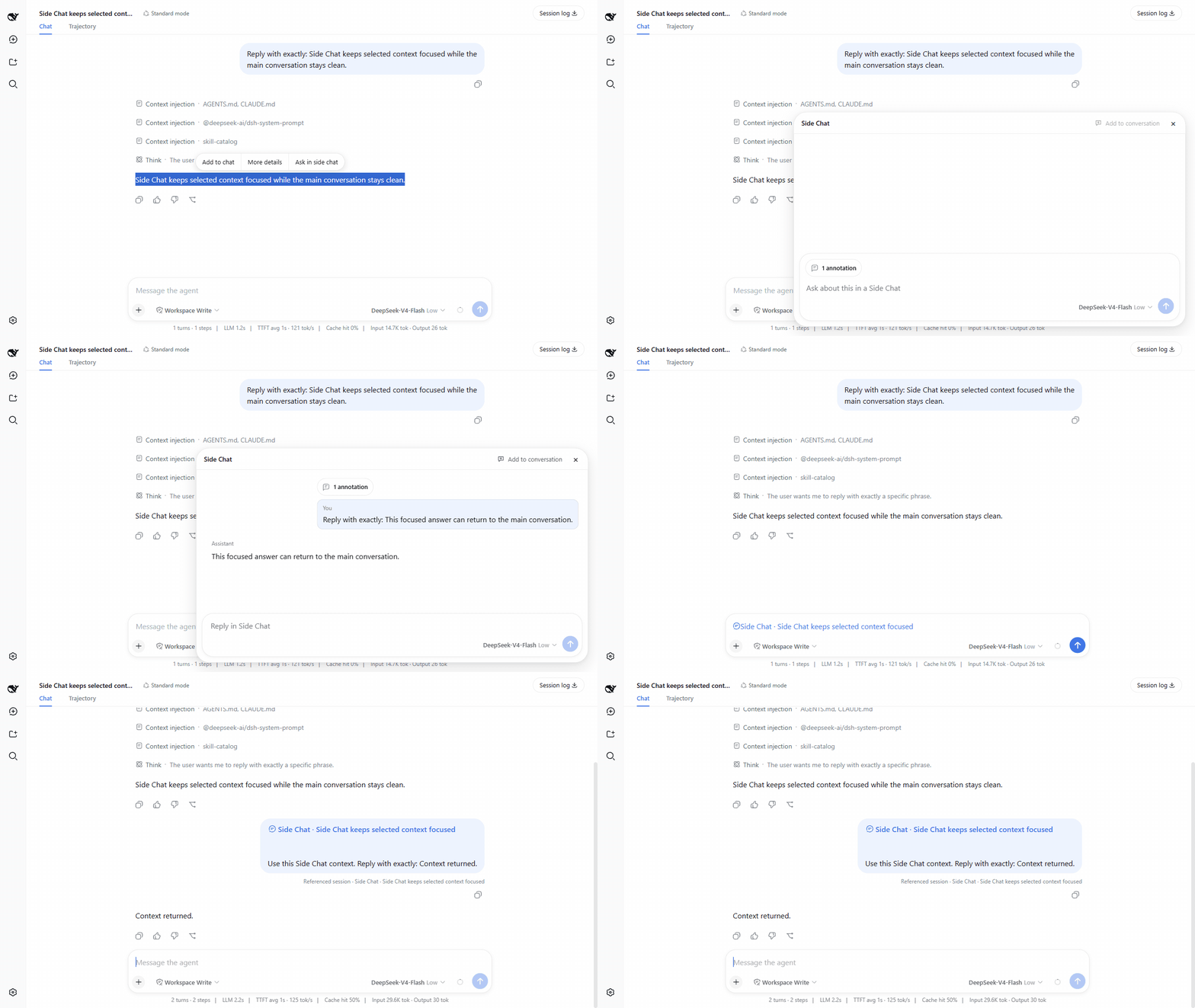
On phones and tablets, long-press text in a completed message to select it. The Side Chat action bar appears below the selection when there is room, leaving the browser's native selection bar above it. Use Add to chat, More details, or Ask in side chat directly from the touch action bar.
- Complete at least one turn in the main conversation.
- Select text inside one completed user or assistant message.
- Click
Add to chatto add an optional comment before attaching the passage to the main composer,More detailsto send an explanation request immediately, orAsk in side chatto write a focused question. - When writing your own message or question, press
Enterto send it. - After a Side Chat reply settles, click
Add to conversationto attach that focused discussion to the main composer as one conversation reference. - Press
Escor click×when you are done.
Useful details:
Shift+Enterinserts a newline.- Use the model control beside Send to choose a provider/model and its available reasoning effort. The choice belongs to Side Chat, does not change the main conversation, and becomes the global default for the next Side Chat.
- After clicking
Add to chat, pressEnteror clickSaveto keep the annotation. Click outside the comment box or clickCancelto discard it. Add to chatkeeps any existing draft text and can collect multiple numbered passages, each with its own optional comment, in one annotation capsule.Add to conversationcaptures the Side Chat's user/assistant history, preserves the main draft, and refreshes the existing reference instead of duplicating it when clicked again.- The input grows with its content and becomes scrollable at its maximum height.
- While a reply is running, the send icon becomes a stop button.
- Assistant replies use DSH's native Markdown rendering.
- Hover over
N annotationsto preview every selected passage and its comment. - Before sending, hover over the annotation capsule and click
×to remove it; after sending, the same capsule appears above the user message. - The main conversation stays visible and is never switched to the child Session.
What happens to the conversation
…